
Adding Registration and Booking Fees
Setting Up Registration Fees:
You can create registration fees in the Admin portal and assign one fee per activity. Fees are charged once per attendee at the time they book. Once assigned, that fee will be charged for every attendee who books the activity from that point forward — but only for attendees who haven’t previously been charged the same fee.
How to create a Registration fee
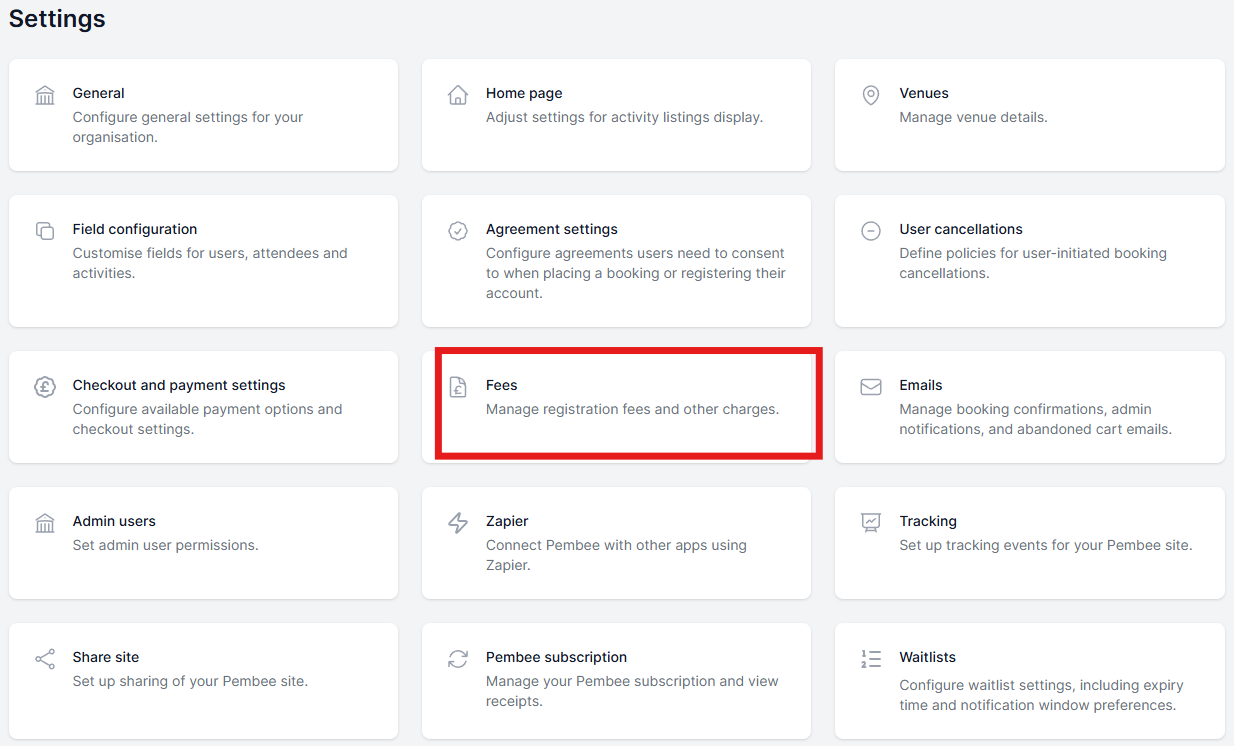
- Open the Settings tab in the Admin portal and select Fees.
-
Click Create New.
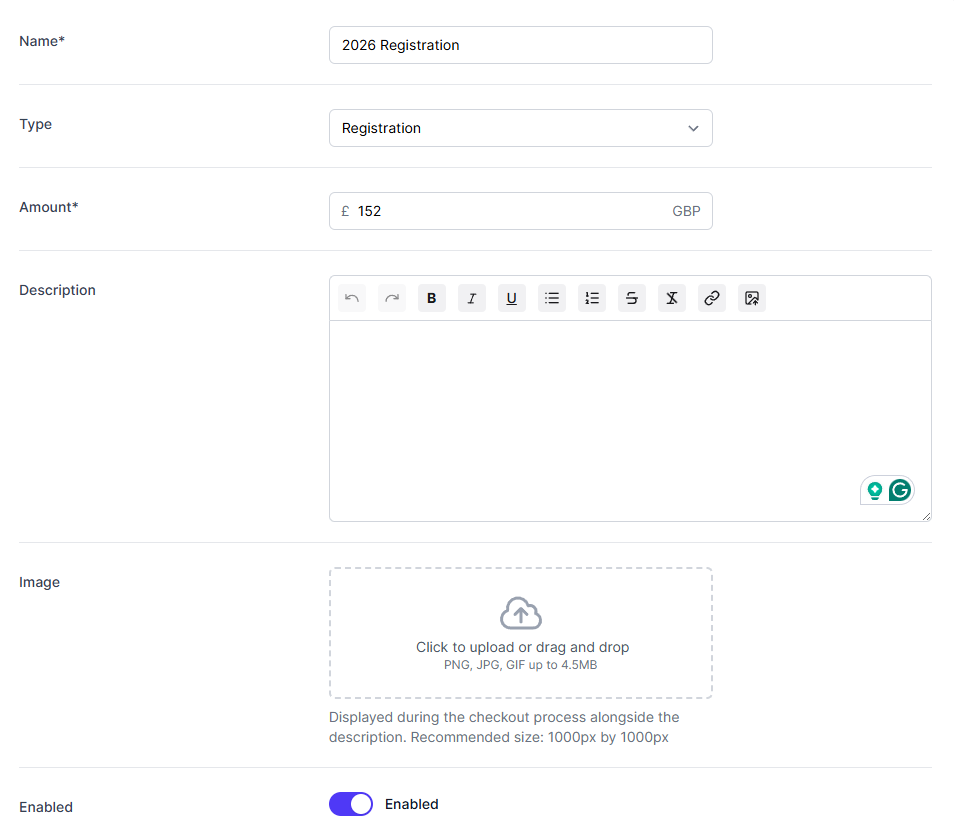
Enter:
- Name — a clear short name (e.g., “2026 Annual Admin Fee”)
- Amount — the fee amount
- Description — a short explanation of the fee purpose
- Save the fee.
How to assign a fee to an activity
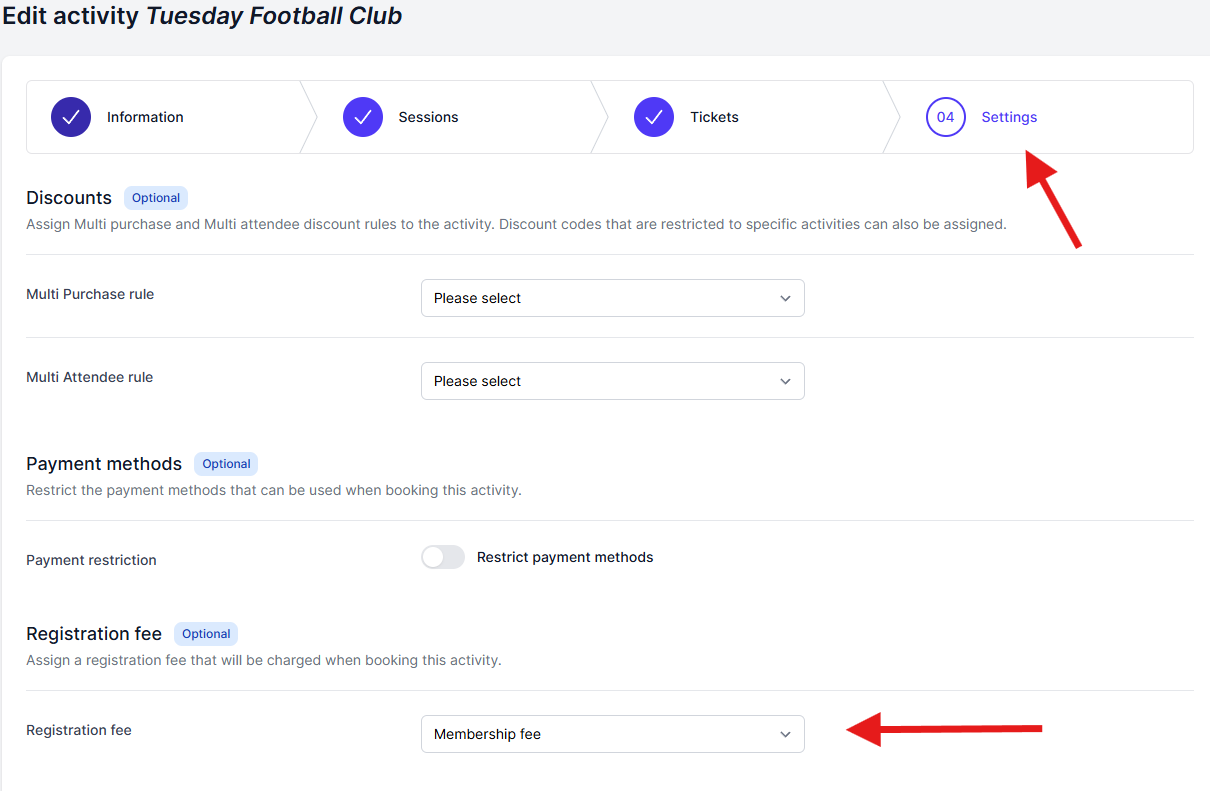
- Edit the activity you want to charge a fee for.
- Go to the activity Settings.
-
Choose the fee you created from the fee dropdown and save changes.
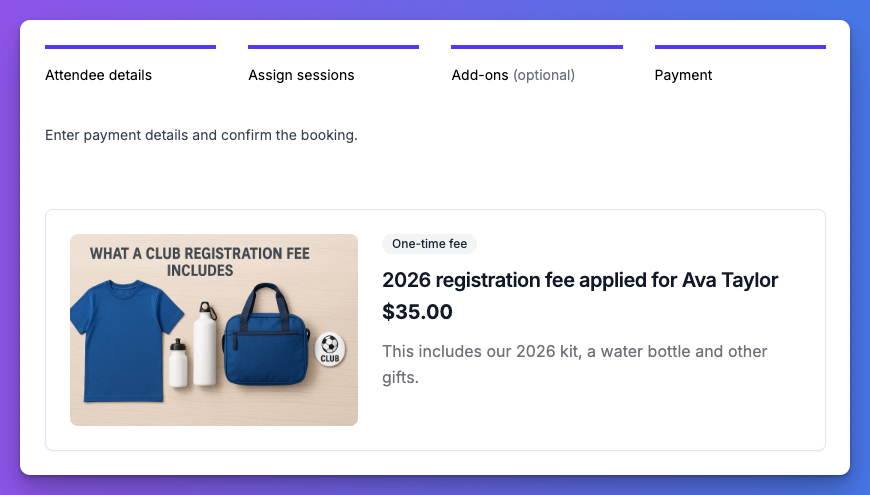
This will be displayed on checkout for users that are paying the Registration fee for the first time
Manually assigning registration fees to a user
Should you need to add a membership fee for an attendee manually, you can do this by going to the attendee and adding the fee:
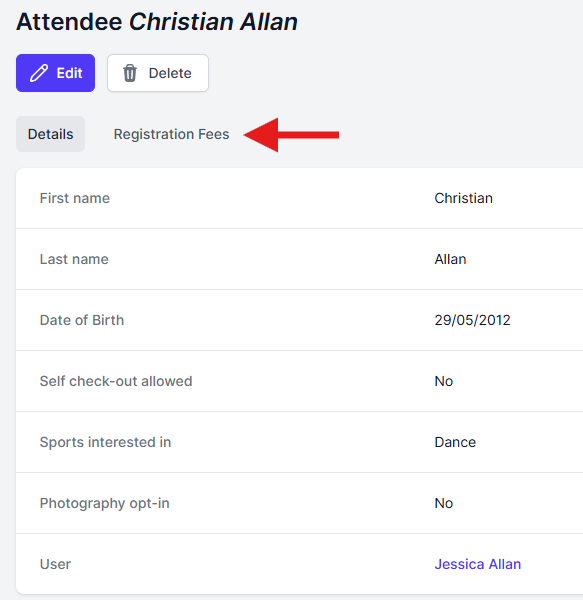
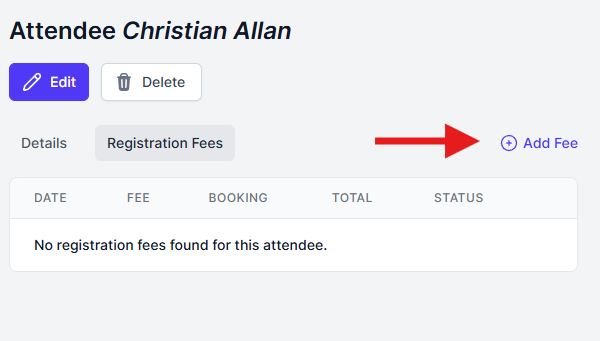
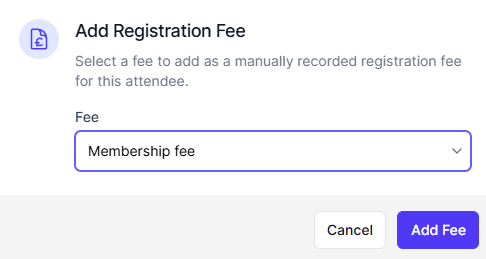
Notes about recurring / annual fees
- If you collect an annual fee, create a new fee for each year (for example, “2026 Annual Admin Fee”) and assign the new fee to the activity at the start of the year. That ensures attendees who book after the new fee is assigned will be charged the correct year’s fee.
FAQ
Q: Can I add more than one fee to an activity?
A: No — only one registration and booking fee may be applied to a single activity at a time.
Q: Will existing bookings be retroactively charged if I assign a fee?
A: No — fees apply only to bookings made after the fee is assigned, and only to attendees who have not previously been charged that fee.
Q: Can multiple activities share the same fee?
A: Yes — If an activity shares the same fee and the attendee has already paid that fee, they would not be charged again.
Q: Will adding a fee manually ask for payment?
A: No — If you have added a fee manually this means that you have usually collected this fee another way or this particular user does not need to pay a fee.
Q: Will a registration fee apply to trial tickets?
A: No — Registration fees are not applied to trial tickets.
Setting up Booking Fees:
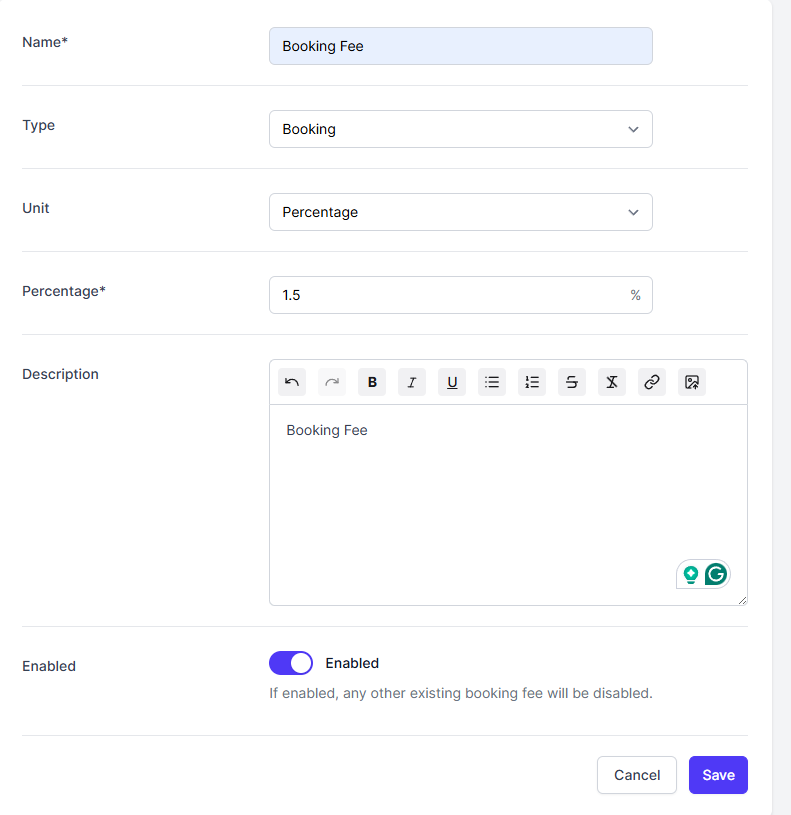
How to create a Booking fee
- Open the Settings tab in the Admin portal and select Fees.
-
Click Create New > Select booking from the dropdown.
Enter:
- Unit — Either a fixed amount or a percentage
- Amount — the fee amount
- Description — a short explanation of the fee purpose, if required
What happens at checkout
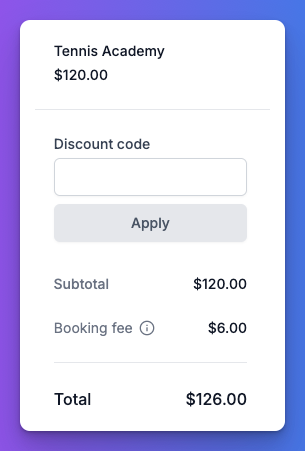
- If the booking fee is enabled, the fee is automatically added to the cart when a user creates a booking.
- The fee appears below the Subtotal in the cart (see screenshot).
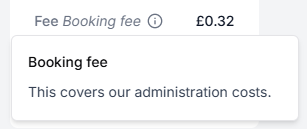
- Users can click the info (i) icon next to the fee to view the fee name and description in a popover.
Which purchases include booking fees
-
Booking fees are applied to regular bookings and to session pass purchases.
Add-ons bought later via My account use the same fee rate that applied to the original booking.
- If no fee was charged on the original booking, no fee is charged for the add-on.
When a booking fee is not applied
Booking fees are never applied if the booking’s line item total (excluding any other fees) is £0. Common cases:
- Free trials.
- Subscription setup items that are £0.
- A booking fully redeemed with session pass credits or account credit.
- If discounts or credits reduce the line item total to £0, the booking fee will not apply.
If a percentage discount is applied, any pass debits or account debits that are part of that discount should be deducted from the amount the percentage is calculated on (see Calculation rules below).
Calculation rules
- Percentage booking fees are calculated on the line item total only — excluding any fees.
- Example: A 5% booking fee on a £100 session = £5 (not £5 + registration fee).
- Fees are not calculated on top of other fees. A percentage fee will not include registration fee amounts or other fees when calculating its percentage base.
- If a booking’s line item becomes £0 after discounts/credits, no booking fee is charged.
Admins: creating, updating, and cancelling fees
-
When creating or updating bookings in the admin area, booking fees must be added or updated manually — they are not automatically added for admin-created/edited bookings.
Partial or full cancellations do not automatically adjust booking fees.
- Admin users can manually edit or cancel the booking fee line item if they need to refund or remove it.
Refunds & cancellations via My account
- When a customer cancels through My account, booking fees are not refunded automatically.
- Admins can choose to cancel a booking fee line item in the admin area if they want to refund or remove the fee.
Quick examples
- Customer books a £0 trial → no booking fee added.
- Customer redeems a session pass credit so the session line becomes £0 after debit → no fee.
- Customer pays £80 for a session and a 10% booking fee applies → booking fee = £8 (10% of £80). Any other fees are not included in the 10% calculation.